I deployed a contact form last month that I thought was rock solid. Clean semantics, smooth validation, excellent keyboard support—everything you'd want in a professional implementation.
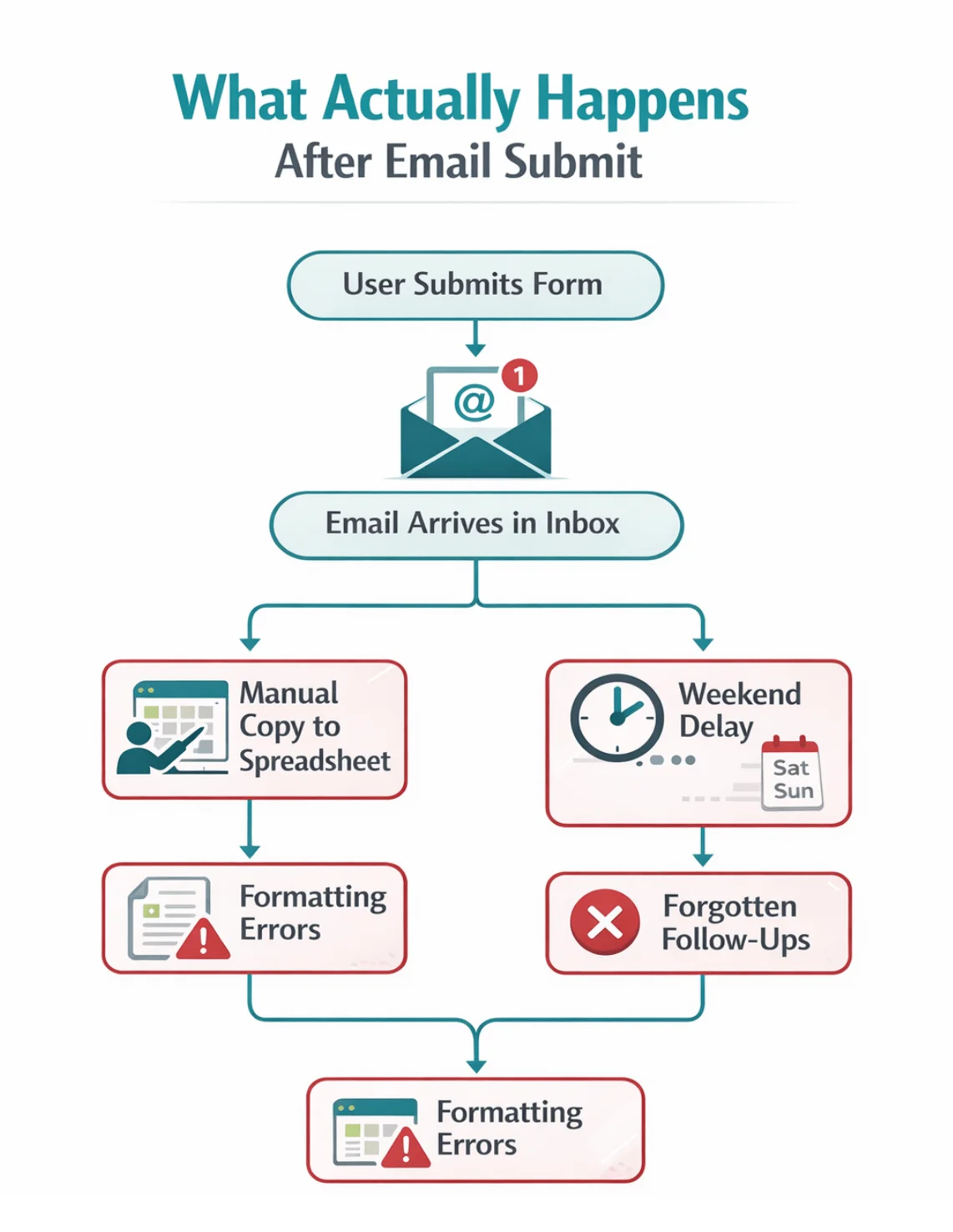
Then my client called two weeks later. We lost a referral because it sat in your inbox all weekend.
The form worked flawlessly. The workflow didn't.
The Problem Nobody Talks About
As front-end developers, we obsess over user experience, validation patterns, and accessibility. But we rarely discuss what happens to form data after it leaves our control—and that's exactly where real-world implementations break down.
Here's what that experience taught me about building better form components.
Why "Send Email on Submit" Fails
The standard pattern looks like this:
fetch('/api/contact', {
method: 'POST',
body: JSON.stringify(formData)
})
// Email gets sent and we call it done
I've seen this approach create real problems: duplicate submissions confusing CRM systems like Salesforce, inconsistent formatting breaking automated imports, weekend inquiries sitting unread until Monday, decimal precision lost when copying quotes into spreadsheets, and "required" fields that weren't actually required by downstream systems.
The realization hit me hard: a working form is the starting line, not the finish. Email isn't a notification—it's a handoff. Treat it as just a notification and you've built a bottleneck into your code. According to Litmus's 2025 State of Email Marketing Report (sign-up required), inbox-based workflows consistently create follow-up delays, especially for sales teams dependent on lead generation.
Designing Forms for Automation
Front-end decisions directly impact back-end automation. Recent HubSpot research confirms that data quality at the user interaction stage determines whether downstream processes succeed or fail.
Here are the practical design decisions that changed how I build forms:
Required vs. Optional Fields
Ask yourself: What does the business actually need this data for?
If phone calls are the primary follow-up method, make that field required. If job title provides useful context but isn't essential, make it optional. This requires collaboration before you write a single line of code.
I once assumed phone numbers were optional, but the CRM required them. Result? Every submission was rejected outright.
Now I base my coding decisions on business process requirements, not assumptions about ideal user experience.
Normalize Data Early
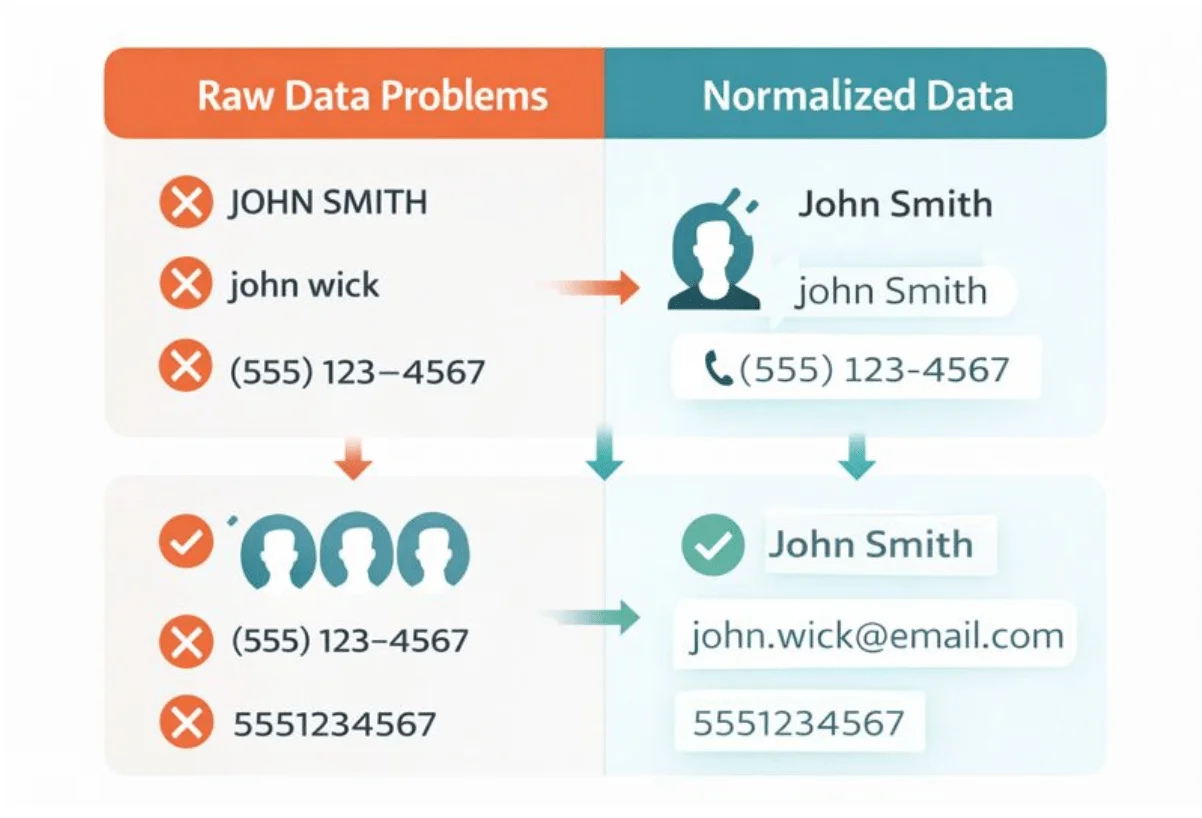
Format data consistently before submission. Phone numbers should follow a standard format. Trim whitespace. Apply title casing where appropriate. This makes scanning easier for whoever receives the data.
Downstream tools can't infer that "John Wick" and "john wick" are the same person. I watched a client manually clean 200 CRM entries because inconsistent casing created duplicate records. Five minutes of front-end code prevents that pain.
Prevent Duplicate Entries From the Front End
Disable the Submit button on click. Show clear submission states with loading indicators. Store a flag that submission is in progress.
Duplicate CRM entries cost real money to clean up. Impatient users on slow networks will absolutely click that button multiple times if you let them.
Success and Error States That Matter
Generic "Thanks!" messages provide zero context. Tell users where their submission went, when to expect follow-up, and what resources they can check in the meantime. This sets expectations for the lead and gives your team a head start on follow-up.
Error messages should help the business too. "This email is already in our system" is infinitely more useful than "Something went wrong."
A Better Workflow
Here's what I missed last time and what I'll implement going forward.
Better Validation Before Submission
Instead of just checking if fields exist:
const isValid = email && name && message;Validate that they're actually usable:
function validateForAutomation(data) {
return {
email: /^[^\s@]+@[^\s@]+\.[^\s@]+$/.test(data.email),
name: data.name.trim().length >= 2,
phone: !data.phone || /^\d{10,}$/.test(data.phone.replace(/\D/g, ''))
};
}
Why this matters: CRMs reject malformed emails. Catch this before the user clicks submit, not after they've waited for a server response.
Note that this phone validation covers common cases but isn't bulletproof for international formats. For production use, consider a library like libphonenumber for comprehensive validation.
Consistent Formatting
Format data before sending rather than assuming the back end will handle it:
function normalizeFormData(data) {
return {
name: data.name.trim()
.split(' ')
.map(word => word.charAt(0).toUpperCase() + word.slice(1).toLowerCase())
.join(' '),
email: data.email.trim().toLowerCase(),
phone: data.phone.replace(/\D/g, ''), // Strip to digits
message: data.message.trim()
};
}
Why I do this: I've seen clients manually fix hundreds of CRM entries because "JOHN SMITH" and "john smith" created duplicate records. This takes five minutes to write and saves hours downstream.
Caveat: this name-splitting logic struggles with single names, hyphenated surnames, and edge cases like "McDonald" or names with multiple spaces. For robust name handling, consider asking for separate first and last name fields.
Prevent Double Submissions
Disable the Submit button on click:
let submitting = false;
async function handleSubmit(e) {
e.preventDefault();
if (submitting) return;
submitting = true;
const button = e.target.querySelector('button[type="submit"]');
button.disabled = true;
button.textContent = 'Sending...';
try {
await sendFormData();
// Success handling
} catch (error) {
submitting = false; // Allow retry on error
button.disabled = false;
button.textContent = 'Send Message';
}
}
Why this pattern works: Impatient users double-click. Slow networks make them click again. Without this guard, you're creating duplicate leads that cost real money to clean up.
Structuring Data for Automation
Instead of this:
const formData = new FormData(form);Structure the data:
const structuredData = {
contact: {
firstName: formData.get('name').split(' ')[0],
lastName: formData.get('name').split(' ').slice(1).join(' '),
email: formData.get('email'),
phone: formData.get('phone')
},
inquiry: {
message: formData.get('message'),
source: 'website_contact_form',
timestamp: new Date().toISOString(),
urgency: formData.get('urgent') ? 'high' : 'normal'
}
};
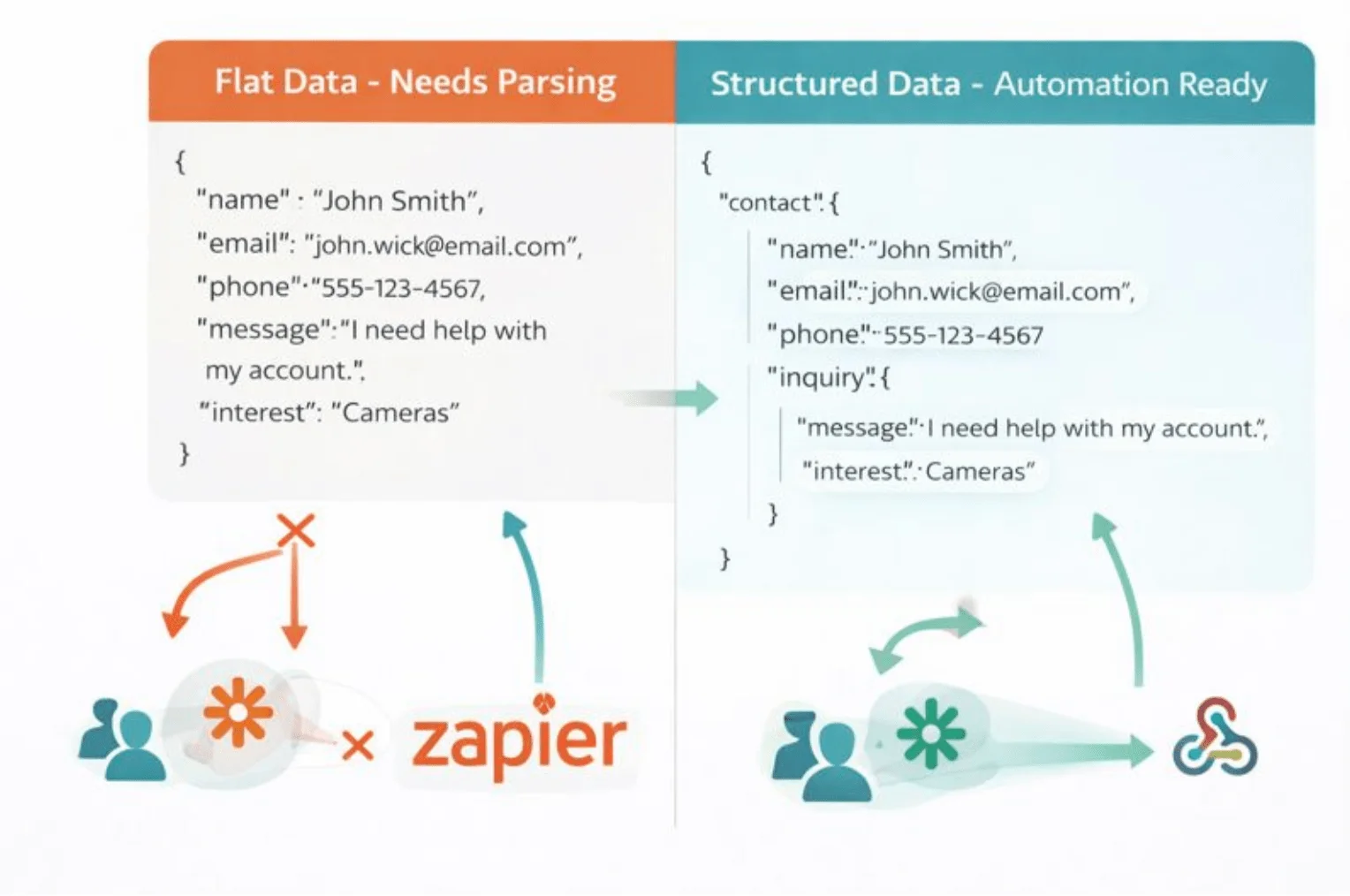
Why structured data matters: Tools like Zapier, Make, and custom webhooks expect it. Send a flat object and someone has to write parsing logic. Send it pre-structured and automation just works. This aligns with Zapier's own recommendations for building reliable, maintainable workflows rather than fragile single-step integrations.
Watch How Zapier Works (YouTube) to see what happens after your form submits.
Think Beyond the Submit Button
A well-designed form submission workflow should look something like this:
- User completes and submits the form
- Data reaches your endpoint or form service
- CRM contact is created automatically
- Sales team receives a Slack or Discord notification
- Follow-up email sequence begins
- Submission data logs to a spreadsheet for analytics
Your front-end decisions directly enable this automation:
- Consistent formatting ensures clean CRM imports
- Structured data integrates seamlessly with automation platforms
- Built-in de-duplication eliminates manual cleanup
- Proper validation reduces processing errors
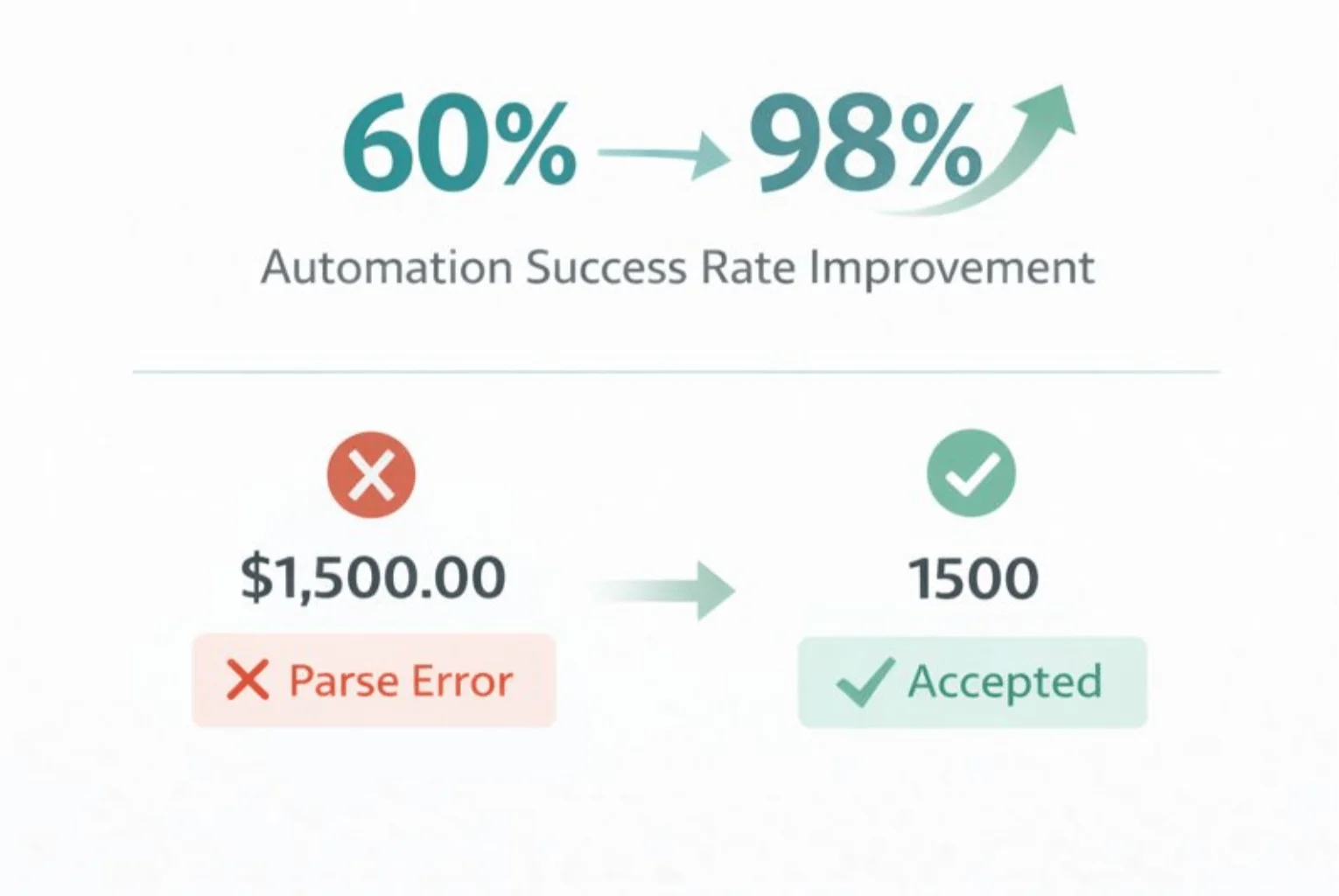
Real-world example: After restructuring a client's lead form, their automated quote processing jumped from 60% to 98% success. The fix was simple—instead of sending { "amount": "$1,500.00"}, I changed it to { "amount": 1500}. Their Zapier workflow couldn't parse currency symbols.
Essential Practices for Automation-Ready Forms
Here's what I've learned about building forms that actually work in production:
- Start with the workflow conversation. Ask "What happens after submission?" before writing any code. This reveals required data formats, integration requirements, and downstream dependencies.
- Test with messy input. Try edge cases like extra spaces, mixed capitalization, and unusual phone number formats. You'll be surprised how many issues surface when you enter "JOHN SMITH " instead of "John Smith."
- Include timestamps and source tracking. Even if it seems unnecessary now, you'll thank yourself six months later when troubleshooting submission issues.
- Build in redundancy. Send both an email and trigger a webhook. Email notifications fail silently more often than you'd expect.
- Provide clear confirmation. Replace generic success messages with specific next steps: "Your message has been sent. Sarah from sales will respond within 24 hours" beats "Success!" every time.
Redefining "Done"
Here's my advice to developers: Your job isn't finished when the form submits without errors. It's finished when the business can act on that submission without manual intervention.
That means eliminating:
- Manual copy-paste workflows
- Email inbox monitoring
- Duplicate entry cleanup
- Post-submission data formatting
The technical implementation isn't particularly complex. The mindset shift is recognizing that forms are integration points in a larger system, not isolated components. This perspective changes how you approach planning, validation, and data structure.
Next time you build a form, ask: What happens when this data leaves my control?
That question will make you a more effective developer.
The CodePen below demonstrates a standard form alongside an automation-ready version. They appear identical to users, but check the console output to see the difference in data quality.
References & Further Reading
- "2025 State of Email Marketing Report" (Litmus)
- "Form Design Best Practices for Lead Capture" (HubSpot)
- "How to set custom error messages for your HTML forms" (Kevin Powell, YouTube)
Form Automation Tips for Happier User and Clients originally handwritten and published with love on CSS-Tricks. You should really get the newsletter as well.